Materials
A material can be applied to meshes and sprites to define the visual look. For example, materials allow you to define color, how reflective it is, if it’s transparent or not, and many more.
Materials have the following inputs:
Blend Mode
It controls how your material will blend in with the pixels behind it. Currently, there’re 3 types of blend mode:
Opaque. The object is completely opaque and you can’t see through it.
Translucent. It allows you to see through objects. It’s a value that can vary from 0 to 1. If it’s 0, the object is completely transparent; if it’s 1, the object is fully opaque. Translucency can be controlled using
Opacityinput. The default value is0.5.
Note
Translucent materials don’t cast shadows unless Translucent shadows features is enabled. Enabling it will increase GPU memory usage.
Whether this feature is enabled or not, translucent materials don’t cast shadows on other translucent materials.
Be aware, if non-translucent material doesn’t cast shadows, it might receive incorrect translucent shadows.
Masked. When in Masked mode, a material is either completely visible or completely invisible. Masked materials act like opaque ones but with one additional option: you can set an
Opacity Maskinput that’ll be used to discard certain fragments of the material. Values below0.5are treated as invisible. For example, masked material can be used for a chain.
Note
Please, don’t confuse Translucent and Masked blend modes. Masked pixels are discarded and not renderer at all! They simply don’t affect the rendering. But Translucent pixels are always rendered, lit, and blended with the background allowing you to see through it. Translucent blend mode is much more computationally expensive.
Albedo
It’s used to determine the overall color of the material. Currently, only textures can be used as an input for it.
Normal
Allows you to specify a normal map that is used to improve the look of an object by faking additional details. If it’s not provided, baked into mesh normals will be used. Currently, only textures can be used as an input for it.
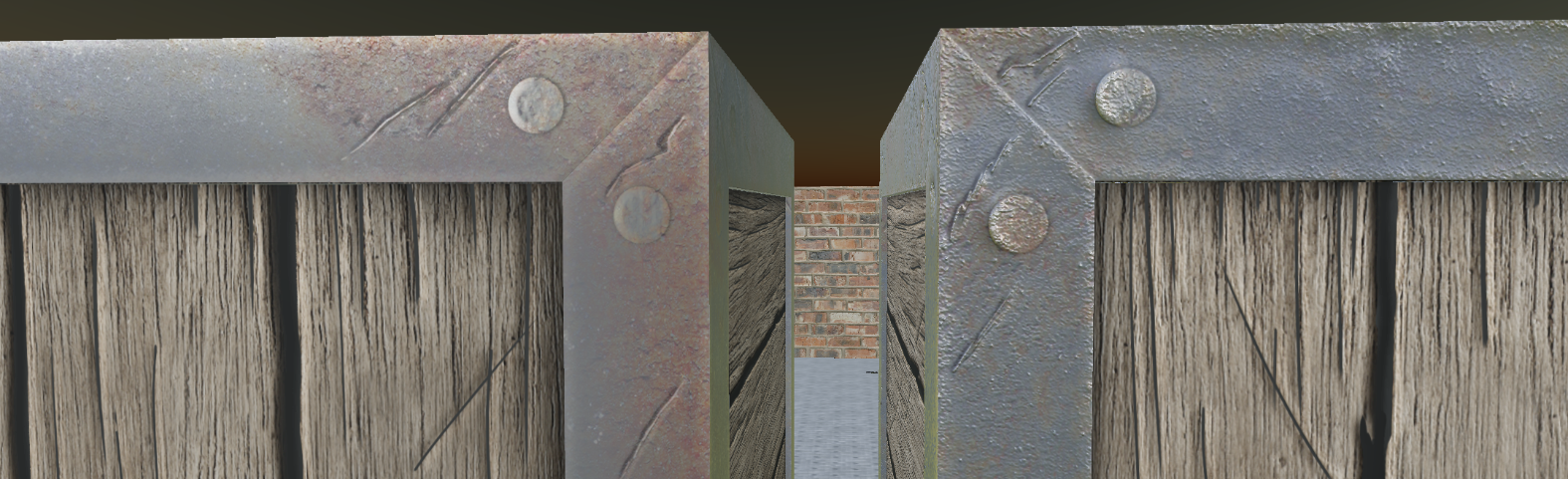
Left crate is rendered without a normal map.
Metalness
It controls how ‘metal-like’ surface looks. It’s a value between 0 and 1, and by default, it’s 0. Currently, only textures can be used as an input for it.
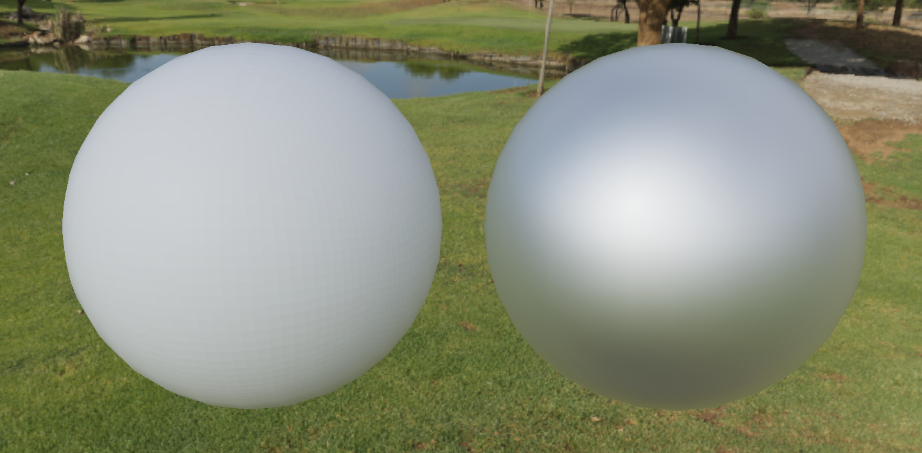
The sphere on the left has a metalness of 0. The right one - 1. In both cases, the roughness is 0.5
Roughness
It controls how rough or smooth surface looks. Rough materials scatter reflected light in more directions than smooth materials, which controls how blurry or sharp a reflection is. Roughness of 0 (smooth) results in a mirror reflection and roughness of 1 (rough) results in a diffuse (or matte) surface. Currently, only textures can be used as an input for it.
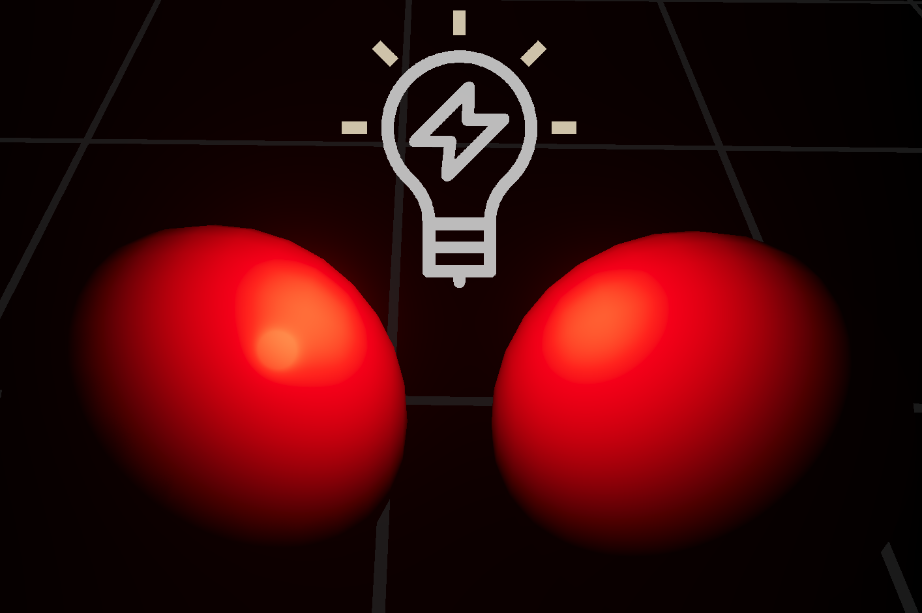
The sphere on the left has a roughness of 0. The right one - 1. In both cases, the metalness is 0.
Ambient Occlusion (AO)
Can be used to change how a surface is affected by ambient lighting (IBL or Ambient of directional light). For example, if material’s AO is 0, that means the material won’t be affected by ambient lighting. By default, it’s 1. Currently, can be used as an input for it.
Emissive
It can be used to determine what parts of a surface will glow. By default, it’s 0. Currently, can be used as an input for it.
Emissive Intensity
It can be used to multiply Emissive input by some value. Currently, it’s an RGB-float input. (not a texture).
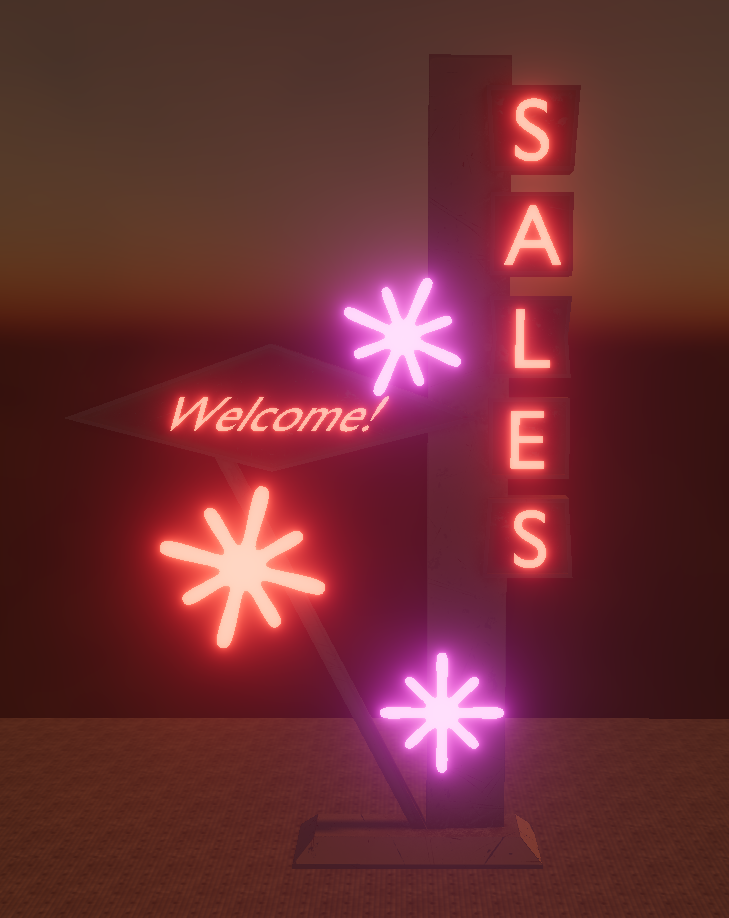
Usage of Emissive and Emissive Intensity inputs.
Opacity
Can be used to control translucency of a material. It’s only used if Blend Mode is set to Translucent. It’s a value between 0 and 1, where 0 means completely transparent; and 1 represents fully opaque. By default, it’s 0.5.
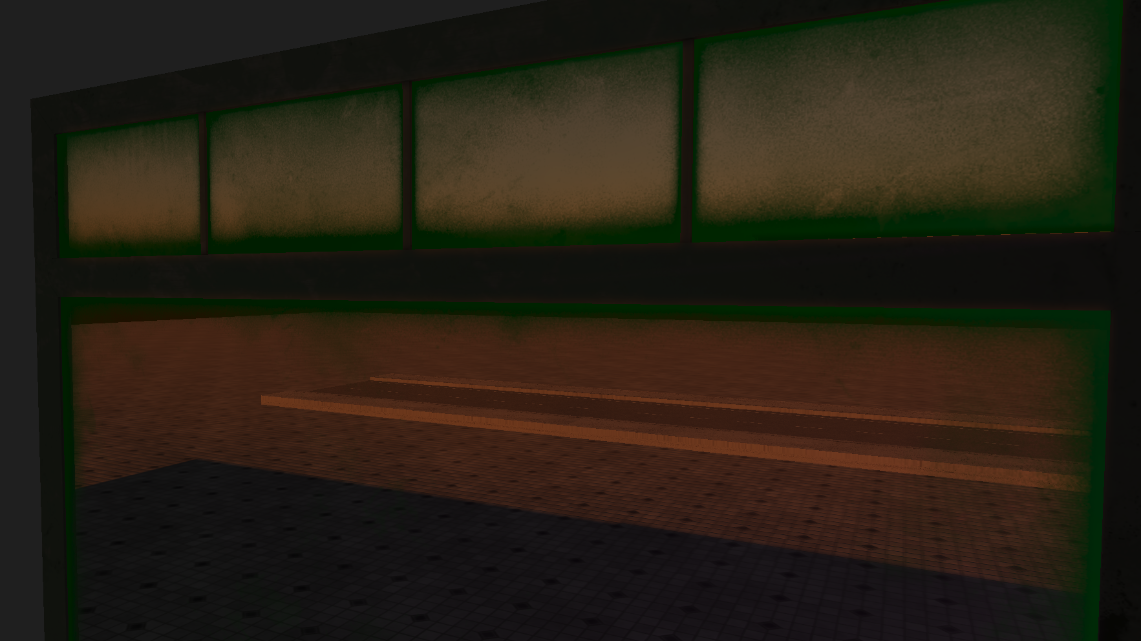
Green window with Opacity and Roughness inputs
Opacity Mask
Can be used to control what parts of a material are either completely visible or completely invisible. It’s only used if Blend Mode is set to Masked.
Values below 0.5 are treated as invisible. By default, everything is visible.
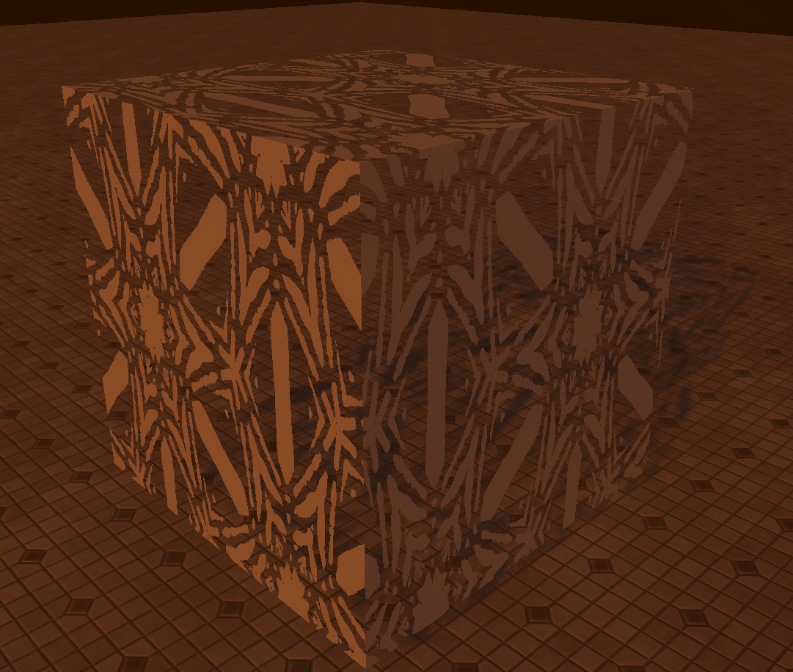
Material with Masked blend mode and an Opacity Mask input
Tint Color
It’s an RGBA-float input that can be used to affect Albedo and Opacity inputs. RGB channels affect Albedo, and A channel affects Opacity.
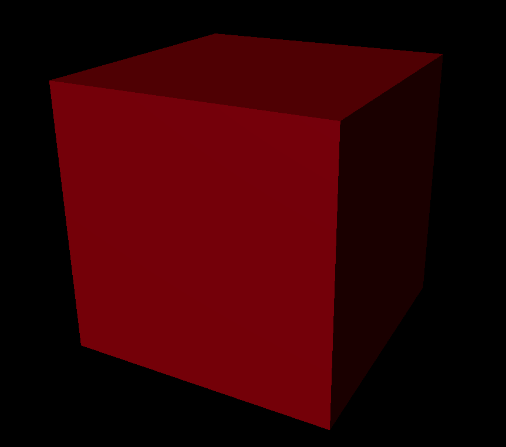
A white material with Tint Color set to (255, 0, 0, 255)
Tiling Factor
It’s a float input that can be used to affect UV-tiling.
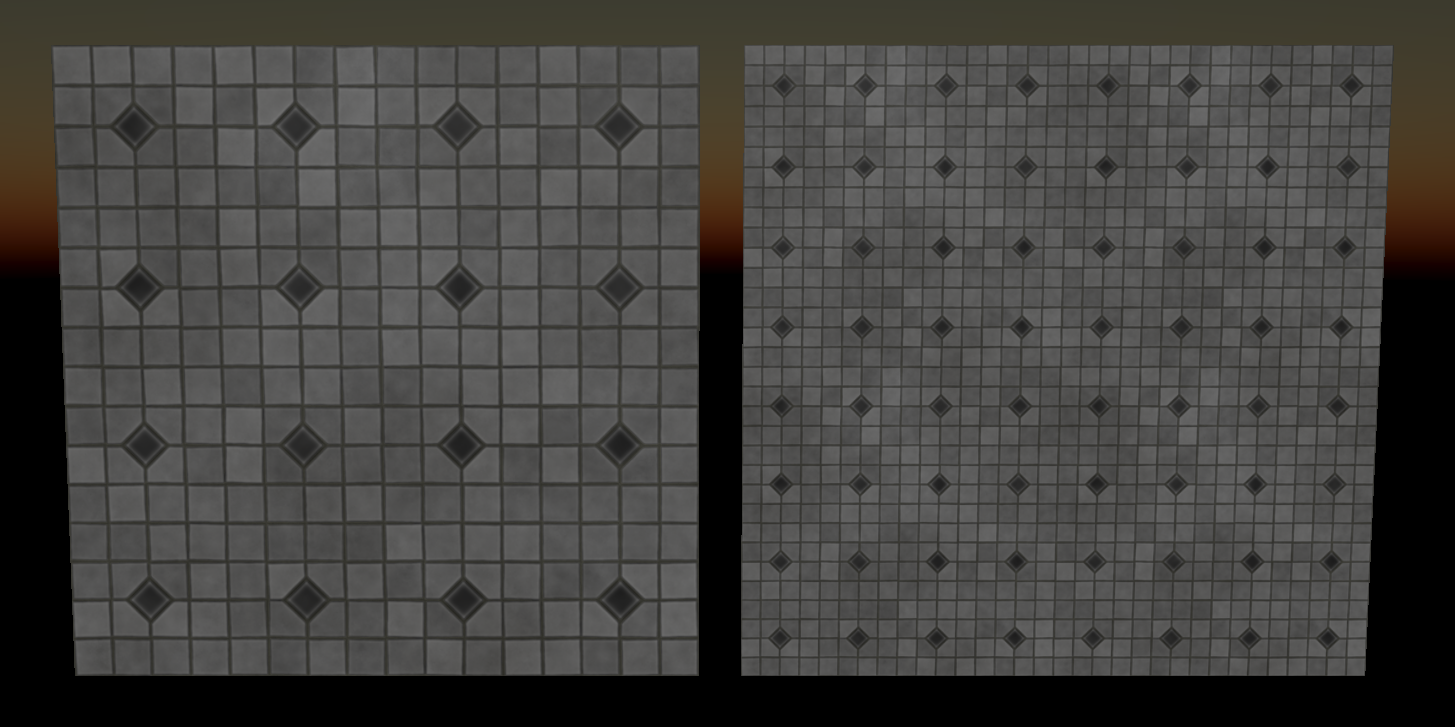
Tiling Factor of 1.0 on the left; and 2.0 on the right