Animation Graph asset
This asset type represents an animation graph which you can modify by using Animation Graph Editor. It allows you to create complex animation logic by usign nodes.
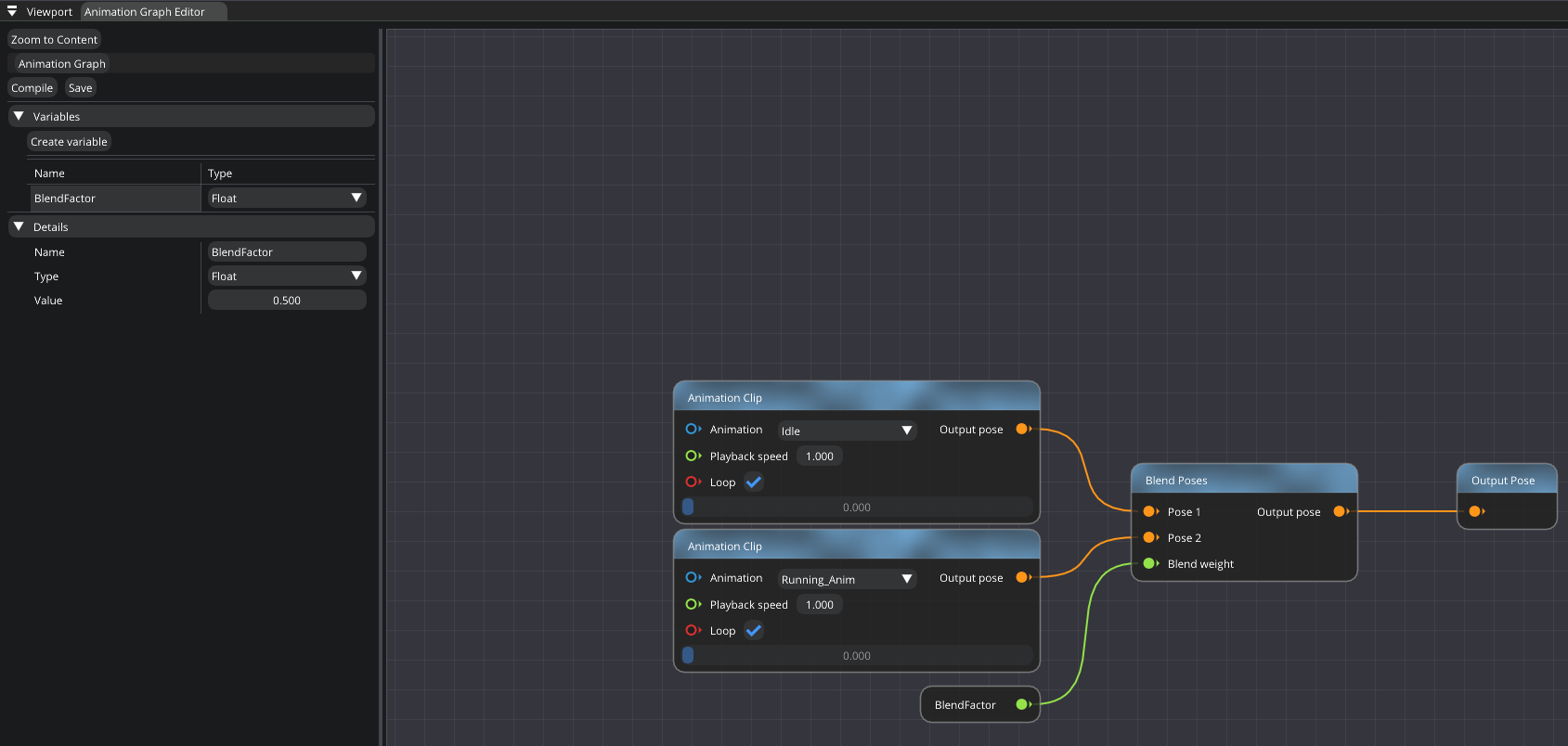
Animation Graph Editor
It allows you to create variables of four types: Bool, Float, String, and Animation. All variables can be changed during runtime and accessed in C#.
You can use this asset in Skeletal Mesh component. Note that each component has its own copy of the graph. So, changing variables in one component won’t affect others.
To break a node link/connection, left-click it while holding Alt.
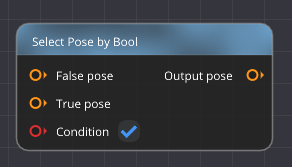
Select Pose by Bool
It selects a pose depending on the condition.
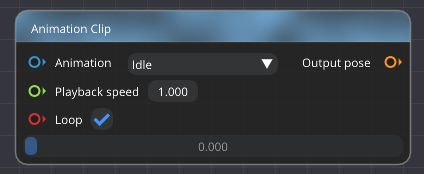
Animation Clip
It retrieves an animation from an animation asset.
State Machine
It allows you to define a transition logic for animations.
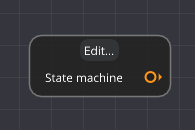
By clicking on a state itself, you can define an animation that will be played when the state is active. You can also specify transition settings, such as: transition condition, transition time, smooth transition. If smooth transition is disabled, frozen transition will be used: clip A is frozen while clip B gradually takes over the movement. This kind of transitional blend works well when the two clips/poses are unrelated and smooth transition looks unnatural.
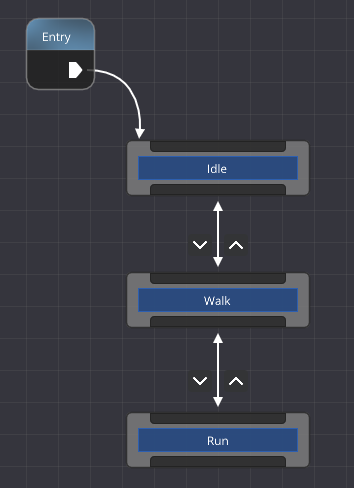
State Machine example
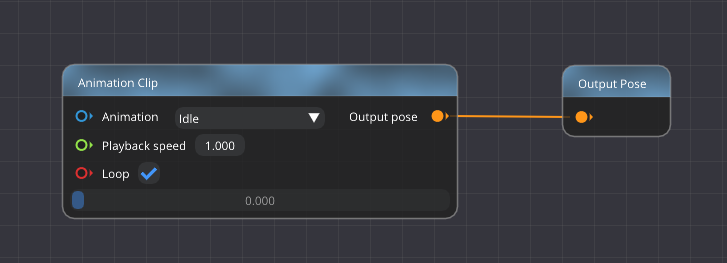
Idle state
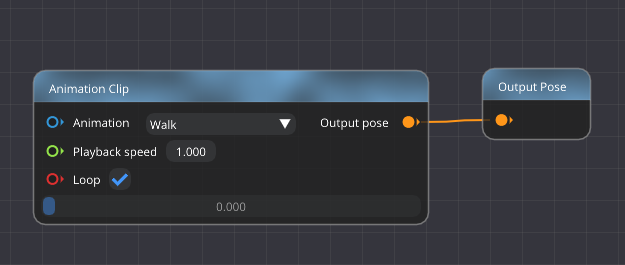
Walk state
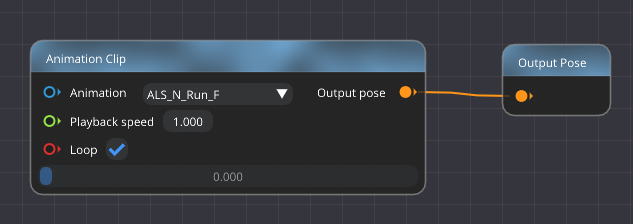
Run state
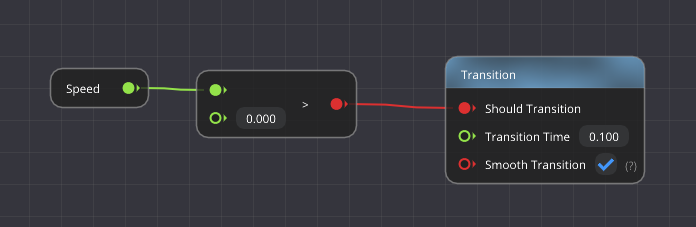
Idle to Walk transition
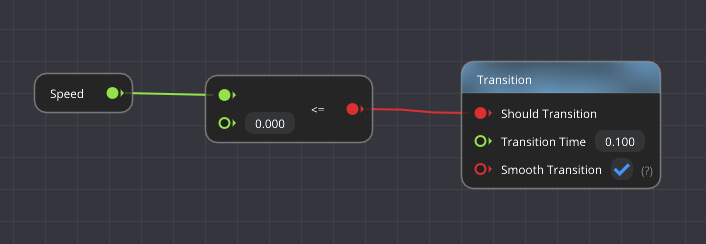
Walk to Idle transition
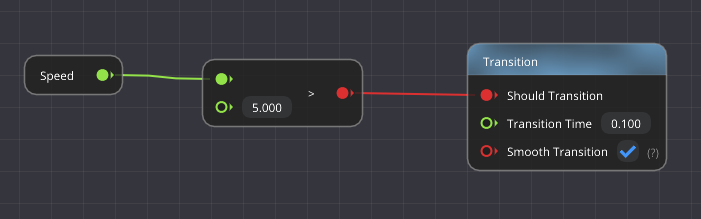
Walk to Run transition
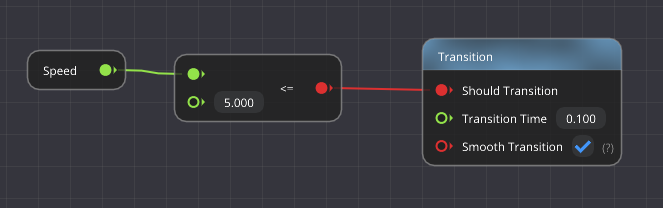
Run to Walk transition
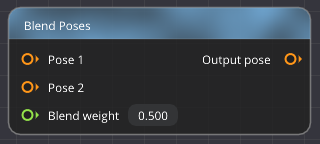
Blend Poses
Linearly blends poses based on the weight. Weight = 0 is Pose1, Weight = 1 is Pose2.
Additive blending
Calculate Additive and Additive Blend. These two can be used to generate new animations based on others. For example, you have three animations: “Base Idle” pose, “Looking Around” pose, and “Running” pose. By using Calculate Additive node, you can extract data that’s unique to “Looking Around” pose. To do so, you need to set “Base Idle” animation as a “Reference” pose, and “Looking Around” as a “Source” Pose. Now you’ve successfully extracted the data required for the mesh to look around. Now, by using “Additive Blend” node, you can apply it to other animations. In this example, let’s apply it to “Running” animation. Now, you have a new animation that’s running and looking around at the same time. Blend Weight input of Additive Blend node controls how strongly “Additive” pose is applied to “Target” pose.
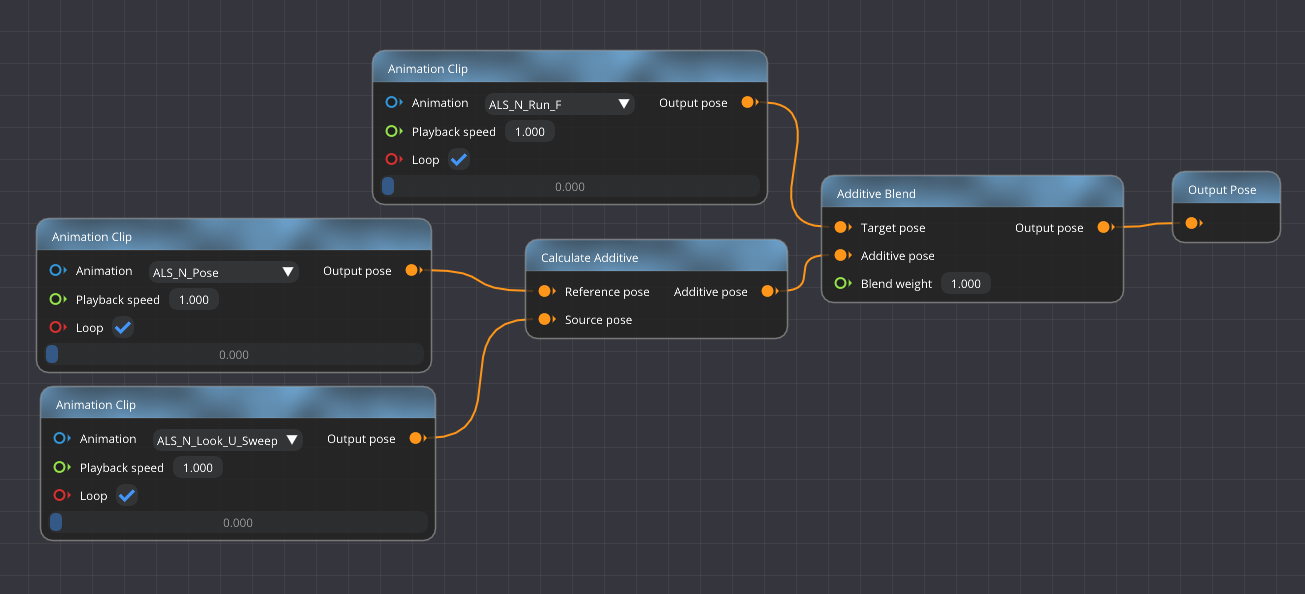
Running & looking around.
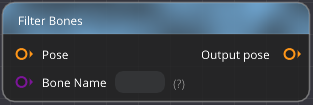
Filter Bones
It allows you to filter out bones. For example, if you want to apply an animation to right hand only, you can do it by specifying its name here.
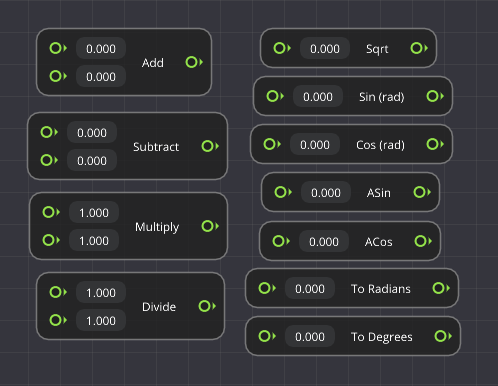
Math nodes
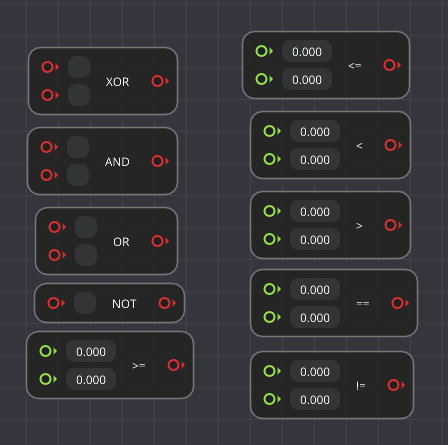
Logical nodes
Comment node
It allows you to group nodes and leave a comment.